

The Apple Business Manager (ABM) is a powerful tool for organizations to manage app distribution, device enrollment, and volume purchasing. If you're deploying an iOS app through ABM, you may have noticed that searching for an app or adding it via a direct link isn't always straightforward.
The Issue: URL Parameters Matter
When adding an app to ABM using a direct App Store link, you need to be mindful of the URL structure. A small mistake in query parameters can lead to the dreaded "No Results" screen.
Searching for Google Maps in Germany
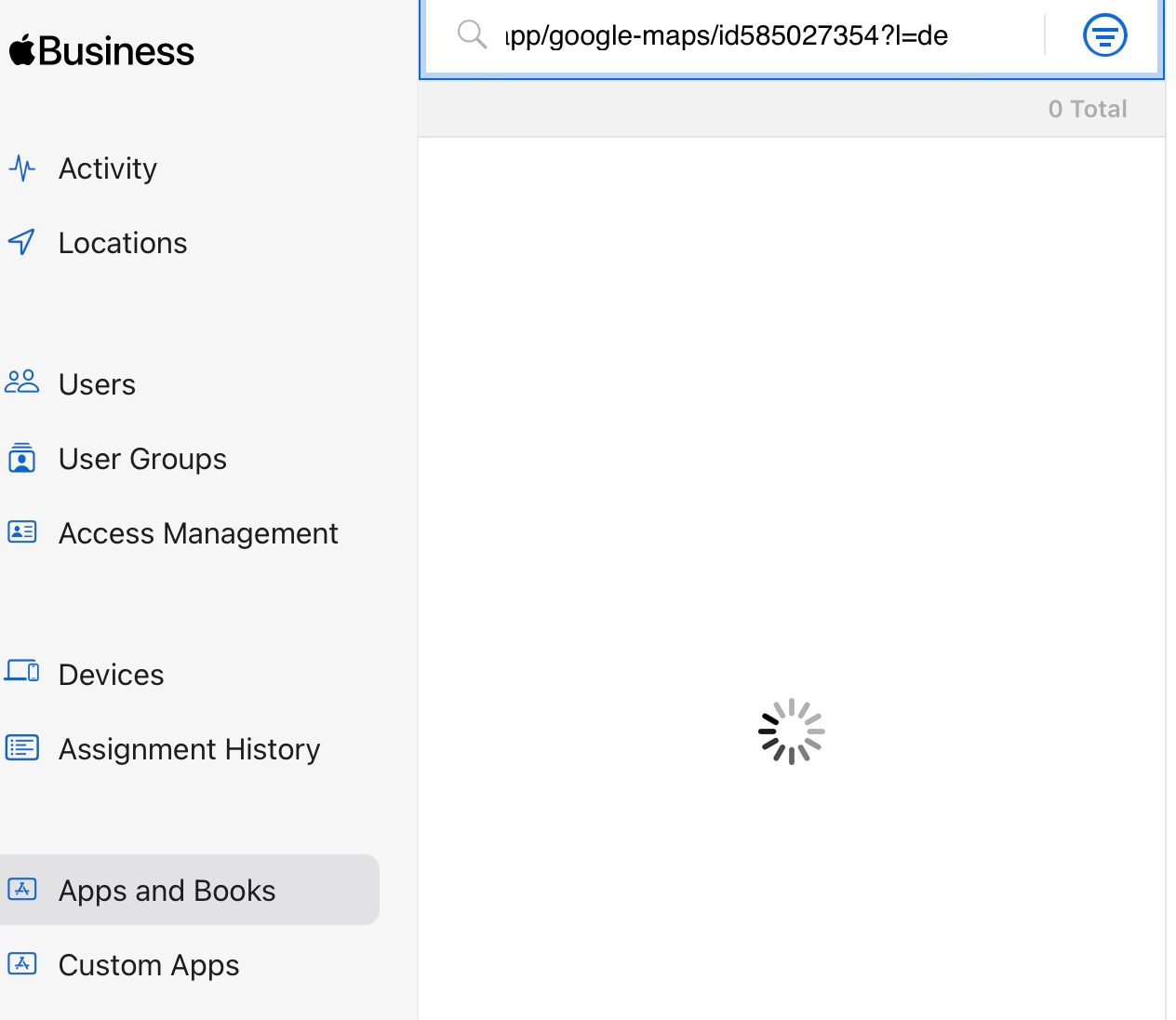
If the link contains an incorrect or unsupported suffix, such as:
https://apps.apple.com/de/app/google-maps/id585027354?l=de-DEThis will cause ABM to return no results, even if the app exists in the App Store.
What Works:
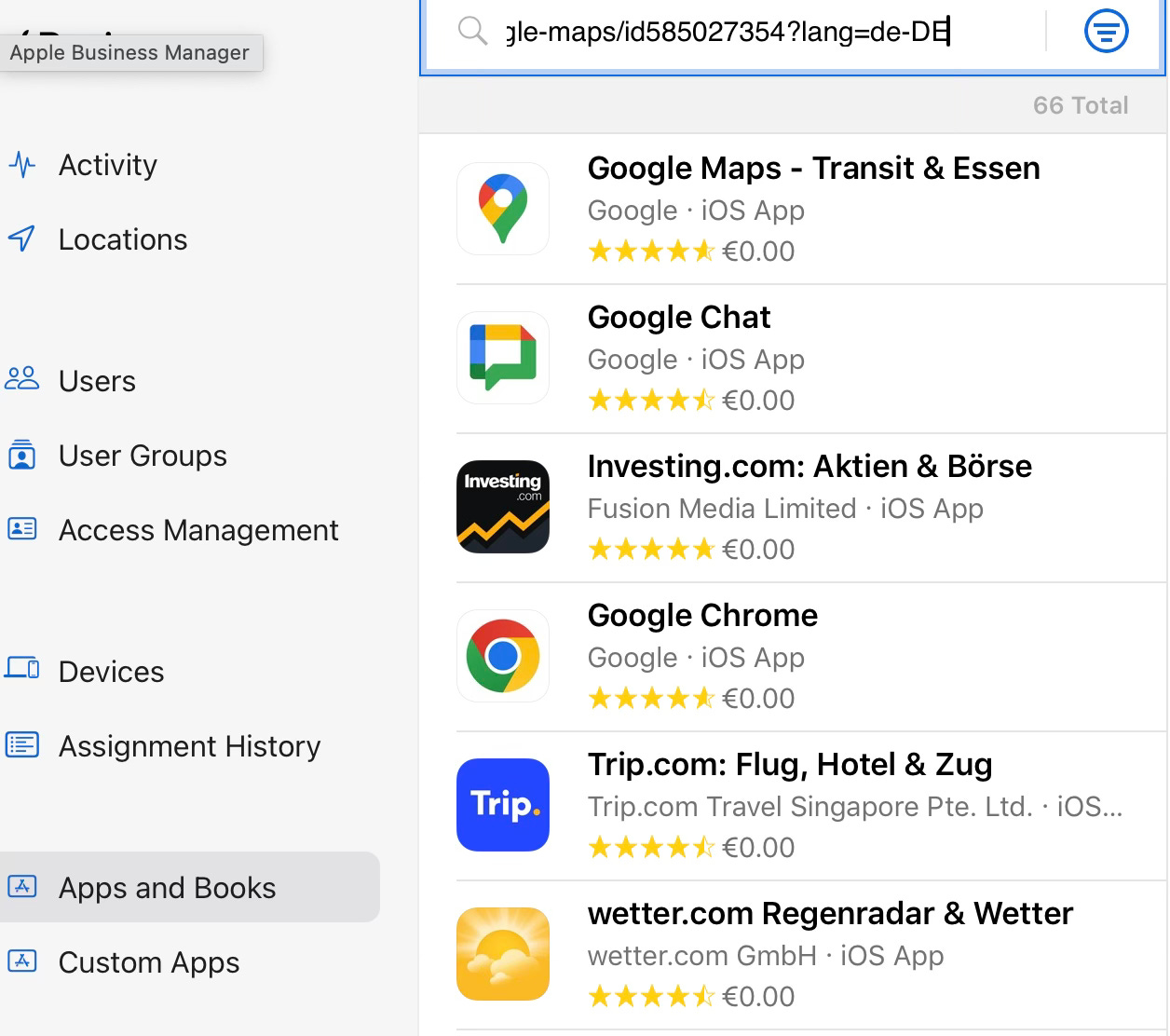
Instead, use:
https://apps.apple.com/de/app/google-maps/id585027354?lang=deThis format ensures that the App Store correctly interprets the language setting and retrieves the app without issues.
Best Practices
Avoid
?l=de-DE– Thelparameter with region-specific language codes doesn't work as expected.Use
?lang=de– Stick to thelangparameter with a simple two-letter language code.Test Before Deploying – Always verify the app link in ABM before sharing it with your organization.
Check Apple's Documentation – URL structures may change, so keeping up with Apple's official guidelines is a good idea.
By following these simple rules, you can avoid unnecessary frustration when managing apps in ABM. If you’ve encountered similar issues or have other ABM-related tips, drop a comment below!